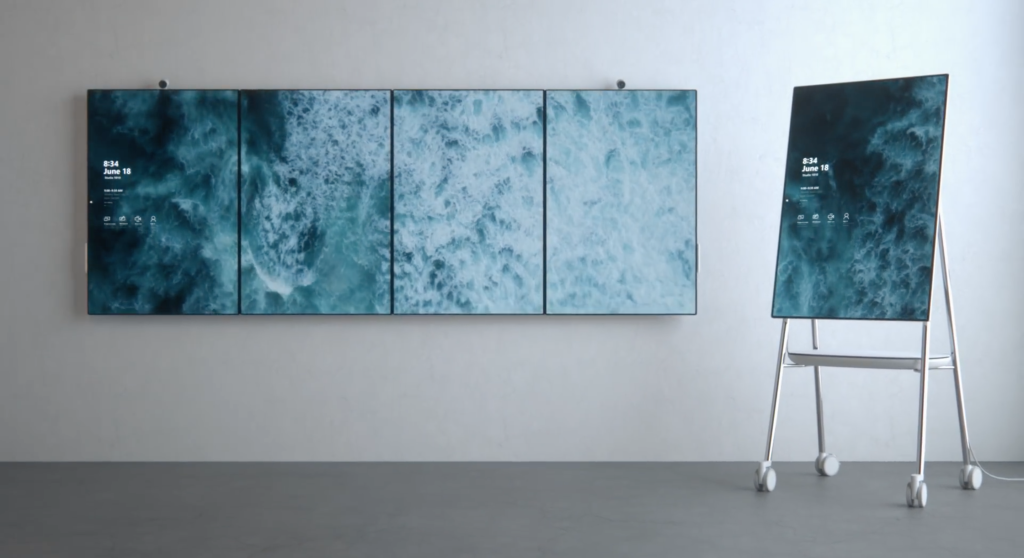
The Microsoft Surface Hub 2 is a major investment in collaborative technology. Designed for teams and workspaces, this 50-inch interactive display transforms how people share ideas and conduct meetings. Yet placing such a device on a rolling stand or a media console often undermines its potential. The Surface Hub 2 performs best when mounted at a fixed, ergonomically correct height, with cables neatly tucked away and the screen positioned for optimal viewing.
In Singapore, where homes increasingly serve as remote offices and HDB flats demand efficient use of space, wall mounting the Surface Hub 2 solves multiple problems. It reclaims floor space, eliminates trip hazards from stands, and creates a permanent, professional installation that integrates seamlessly into the room’s architecture. However, this is not a task to approach lightly. The Surface Hub 2 weighs approximately 28 kilograms without accessories, and its mounting system must support this load reliably for years.
This guide walks you through every aspect of selecting, installing, and positioning a Surface Hub 2 wall mount. It covers HDB regulations, wall types, mount specifications, and the precise steps required to complete the installation safely. Whether you are setting up a home office, a family collaboration space, or a small business environment within an HDB flat, the information here provides the foundation for a successful project.

Understanding HDB Regulations for Wall Mounting
Before drilling any holes, you must understand what the Housing & Development Board permits. HDB imposes strict rules to maintain structural integrity and fire safety across all residential blocks . These regulations apply regardless of whether you are mounting a television, a whiteboard, or a Surface Hub 2.
The first distinction concerns wall types. Structural walls, which appear as thick black lines on your flat’s floor plan, are reinforced concrete and form the building’s load-bearing skeleton. You may drill small holes into these walls for mounting fixtures, but you cannot hack, cut, or significantly alter them. Non-structural walls, such as partition walls made of drywall or brick, are generally permissible for drilling, though each material requires specific hardware and techniques.
Drilling into any wall carries the risk of hitting concealed electrical wiring or water pipes. In HDB flats, wiring typically runs vertically or horizontally from sockets and switches. As a rule, avoid drilling directly above, below, or beside electrical points. A stud sensor or wire detector is essential to confirm that your chosen mounting location is free of hidden hazards.
HDB also enforces strict timing restrictions on renovation work. Noisy operations, including drilling and hammering, are permitted only between 9:00 AM and 5:00 PM on weekdays. Such work is prohibited on Saturdays after 1:00 PM, all day on Sundays, and on public holidays. A Surface Hub 2 installation requires multiple holes drilled into concrete or masonry, so scheduling the work within these permitted hours is necessary for compliance and neighborly consideration.
Electrical work related to the installation must also follow licensing requirements. Any new power points, relocation of outlets, or concealed wiring must be performed by an Energy Market Authority (EMA)-licensed electrician. Attempting to run power cables inside walls without proper in-wall rated cabling and professional installation violates fire safety codes.
Selecting the Correct Surface Hub 2 Wall Mount
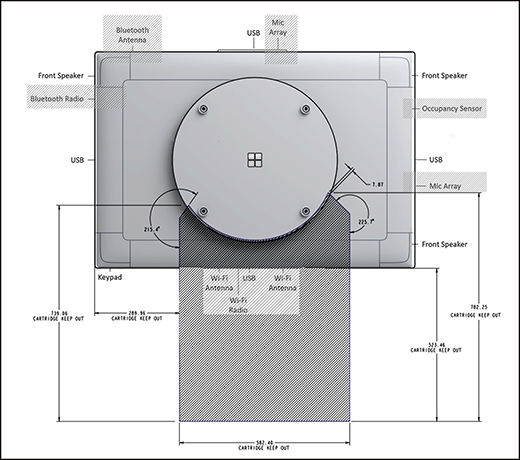
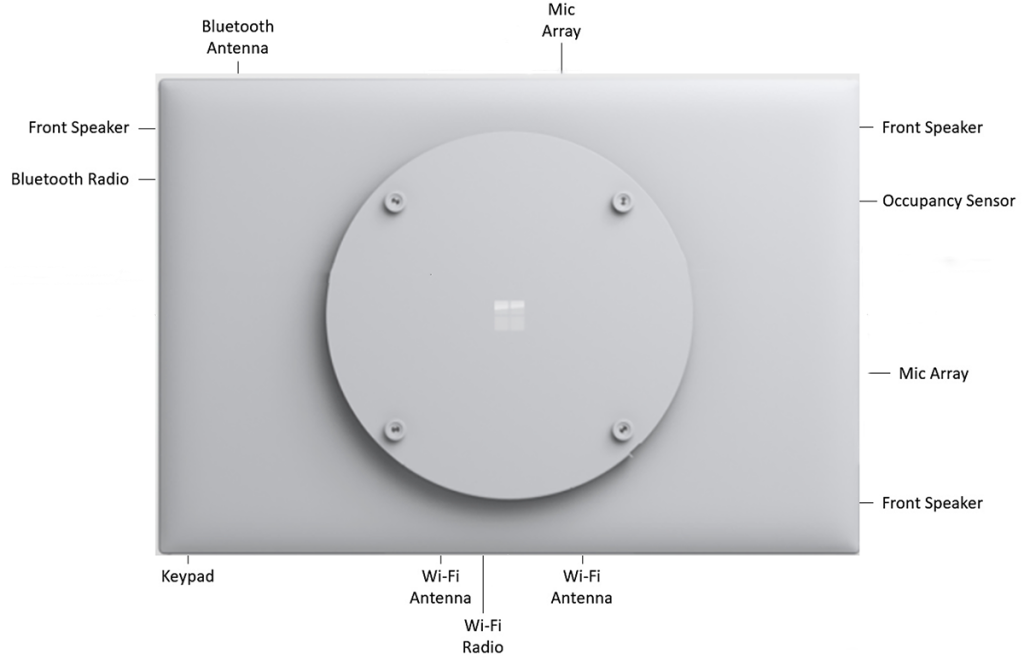
Choosing the right mount is the most critical technical decision. The Surface Hub 2 uses a specific mounting interface that differs from standard televisions. While the device supports a 350mm x 350mm VESA pattern, the mounting solution must accommodate the Hub’s circular rear housing and provide access to the computing cartridge and connection ports.
Several manufacturers produce mounts specifically engineered for the Surface Hub 2. The Peerless SmartMount SF640-HUB2 is designed exclusively for the 50-inch Surface Hub 2S and 2X. Its circular design matches the Hub’s rear profile, and it provides full access to power, data connections, and the removable computing cartridge without requiring the display to come off the wall . This mount positions the screen only 89 millimeters from the wall, creating a low-profile, ADA-compliant installation. It supports a load capacity of 36.3 kilograms and includes all necessary wall and display attachment hardware .
Another option is the Microsoft Steelcase Roam Wall Mount. This mount features a seismic locking system that allows the display to be placed onto the wall plate and automatically lock into place, simplifying the installation process . The Steelcase mount is designed specifically for drywall installation and does not require additional support brackets when mounted to properly located studs. It weighs approximately 3.2 kilograms and keeps the Hub close to the wall for a clean appearance.
For installations requiring height adjustability, the Salamander FPS2W/EL/GG Electric Lift Wall Stand provides motorized height adjustment at the touch of a button. This solution is ideal for spaces where multiple users of different heights will interact with the screen. It includes a Microsoft Surface Hub 2 mounting adapter and conceals cabling within its structure .
When selecting a surface hub 2 wall mount, verify the following specifications:
- VESA pattern compatibility: The mount must accommodate 350mm x 350mm.
- Weight capacity: The mount must support at least 36 kilograms, though a higher rating provides an additional safety margin.
- Access to ports and cartridge: The mount should not obstruct the rear connections or the removable computing cartridge.
- Wall type compatibility: Confirm whether the mount is suitable for concrete, drywall, or brick installations.
Preparing the Wall and Identifying Mounting Zones
With the mount selected, the next phase involves preparing the wall and determining the exact mounting location. This step requires precision and patience.
Start by assessing the wall type. For concrete walls, you will need a hammer drill with a carbide-tipped masonry bit. For drywall, you must locate the vertical studs behind the plasterboard. The mount must anchor into these studs using heavy-duty lag bolts. Using only drywall anchors for a 28-kilogram device invites catastrophic failure.
Run a stud sensor across the intended mounting area to confirm the location of studs and to detect any electrical wiring or pipes. In HDB flats, electrical wires often run in conduit embedded within the walls. Hitting a wire during drilling can cause short circuits, fire hazards, and costly repairs.
Consider the viewing height. The center of the Surface Hub 2 screen should sit at a height comfortable for the primary users. For standing use, the center typically falls between 1500 millimeters and 1700 millimeters from the floor. For seated use, the center should be lower, around 1100 millimeters to 1300 millimeters. Mark this height on the wall with a pencil.
Use the mount’s wall plate as a template. Hold it against the wall at the marked height and ensure it is level using a spirit level. Mark the center of each mounting hole with a pencil. Double-check these marks against your earlier sensor readings to ensure they avoid stud edges, electrical lines, and pipes.
Step-by-Step Installation Guide
With preparations complete, the installation process begins. Follow these steps carefully to achieve a secure and professional result.
| Step | Details |
|---|---|
| Step 1: Confirm wall suitability | Review the floor plan to confirm the wall is not a structural reinforced concrete beam or column. If the wall is drywall, confirm that the marked mounting holes align with stud centers. If the wall is concrete or brick, confirm that the drill bit and wall plugs are appropriate for the material. |
| Step 2: Drill pilot holes | Set the drill to the correct mode—hammer mode for concrete, standard rotation for drywall or brick. Drill to the depth required by the screw length. For concrete, work slowly to avoid overheating the bit. Clear dust from each hole periodically to ensure the wall plug seats correctly. |
| Step 3: Insert wall plugs and secure the wall plate | For concrete and brick walls, tap the wall plugs into the holes until they are flush with the surface. For drywall studs, plugs are not needed; the screws go directly into the wood or metal stud. Align the wall plate with the holes and drive the screws in, tightening firmly. Do not overtighten, as this can strip the plug or crack the plaster. |
| Step 4: Verify the plate is level | Place the spirit level on the wall plate to confirm it remains level after tightening. Any deviation here will affect the final display alignment. |
| Step 5: Attach the adapter to the Surface Hub 2 | If your mount uses a separate adapter plate, lay the Surface Hub 2 face down on a soft, clean surface. Follow the manufacturer’s instructions to attach the adapter. Use the provided screws and ensure they are tightened to the specified torque. The Peerless mount, for example, includes hardware that meets the length requirements specified by Microsoft. |
| Step 6: Prepare the display for lifting | With the adapter attached, lift the Surface Hub 2 with the help of another person. This device is large and heavy; attempting to lift and mount it alone risks injury or damage to the screen. |
| Step 7: Engage the mount | Align the adapter on the back of the Surface Hub 2 with the wall plate. For the Steelcase Roam mount, the seismic locking system automatically engages when the display is placed onto the mount. For the Peerless mount, the adapter slides into the wall plate and locks in place. Listen for the click or engage the locking mechanism according to the instructions. |
| Step 8: Secure any locking screws | If the mount includes set screws or locking bolts to prevent accidental dislodging, install them now. These provide additional security, especially in environments with vibrations or heavy use. |
| Step 9: Perform a safety test | Gently try to lift the display off the mount to confirm it is locked. Apply light pressure to the edges to ensure the mount is stable and the wall fixings are holding. Only after confirming stability should you release the unit. |
| Step 10: Connect cables | With the display mounted, connect the power cable, network cable, and any peripheral cables. The Peerless mount leaves the computing cartridge accessible, so you can install or remove it without unmounting the display. |
Need a Surface Hub 2 installed safely and professionally? FixFirst provides expert mounting services for offices and co-working spaces across Singapore. We handle structural checks, precise drilling, and full safety testing—ensuring your investment is secure. Book today for a flawless setup.
Managing Cables and Achieving a Clean Installation
A wall-mounted Surface Hub 2 loses much of its visual appeal if cables hang visibly down the wall. Managing these cables is essential for both aesthetics and safety.
The simplest solution uses surface-mounted cable conduits. These paintable channels adhere to the wall and conceal cables from the bottom of the display to the nearest outlet or desk. Choose a conduit width that accommodates the power cable, HDMI cables, and network cable simultaneously.
For a flush finish, you can route cables through the wall cavity. This requires cutting access points behind the display and near the floor or desk to run cables through the wall. In concrete HDB walls, this is generally not permitted, as it constitutes hacking into structural elements. In drywall partitions, it is technically possible but must be done by a professional who understands building codes and fire safety requirements.
The power cable requires special attention. Running a standard power cord inside a wall cavity violates fire safety codes. If you want a completely concealed power connection, you must have a licensed electrician install a new power outlet behind the display location. This outlet must be fed with in-wall rated cabling and comply with EMA regulations .
For installations using the Steelcase Roam mount, the low-profile design keeps the display close to the wall, which naturally minimizes visible cabling . Pairing this with a recessed power outlet creates an exceptionally clean appearance.
Positioning and Ergonomics
With the Surface Hub 2 mounted and cables managed, final positioning adjustments ensure optimal usability. The interactive nature of the Surface Hub 2 means users will touch the screen frequently. The mounting height must allow users of varying heights to reach the entire screen comfortably.
For a home office or family space, a center height of 1350 millimeters from the floor works well for both standing and seated interaction. This places the screen at a level where adults can use the touch interface without stretching, while children can reach the lower portion of the display.
If the installation serves a dedicated workspace where the primary user sits at a desk, the height should match the user’s eye level. The top of the screen should sit at or slightly below eye level when seated. This ergonomic positioning reduces neck strain during extended video conferences and collaborative sessions.
Consider the room’s lighting. Position the display to avoid glare from windows and overhead lights. The Surface Hub 2’s anti-glare coating helps, but direct reflections still cause eye strain. If the room has large windows, place the display perpendicular to them rather than directly opposite.
When To Call a Professional
While the steps outlined above are achievable for a competent DIYer, several factors make professional installation advisable for the Surface Hub 2. The weight and value of the device alone justify the cost of expert handling. A misstep can result in a cracked screen, a damaged wall, or a mount that fails over time.
If your wall is concrete and you lack a powerful hammer drill, or if you are uncertain about the location of wiring and pipes, these are risks not worth taking. Professional handymen carry the proper tools and use stud sensors and wire detectors to confirm safe drilling zones.
FixFirst provides experienced handyman services across Singapore who understand HDB regulations and the technical requirements of mounting large interactive displays. Contact FixFirst today to schedule a professional installation and enjoy your Surface Hub 2 mounted securely, at the perfect height, with total peace of mind.